
Introducing Judge Optimization on Stratix Enterprise: Close the Gap Between Automated Scores and Human Judgment
Author:
The LayerLens Team
Last updated:
Feb 25, 2026
Published:
Feb 25, 2026
Introduction
Most teams ship their LLM judge prompts after testing a handful of cases. The prompt looks reasonable, the scores feel right, and it goes into production. Nobody circles back to measure whether the judge and the domain experts actually agree on what should pass and what should fail.
Over time, the gap widens. Your team calls something a fail; the judge marks it as a pass. You tweak the prompt. A week later, the same kind of disagreement resurfaces in a different trace. The product evolves, new edge cases appear, and the prompt stays frozen.
Judge Optimization in Stratix Enterprise fixes this drift. You label a set of agent traces with the verdicts your team expects, and the judge prompt gets automatically rewritten to match those labels using GEPA prompt optimization within DSPy (more on the mechanism below). In our internal testing, a single medium-budget optimization run doubled a judge's agreement with human annotations, from 33.3% to 66.7%.
Why Judge Prompts Drift
A judge prompt written for single-turn Q&A doesn't have the specificity to evaluate a ten-step agent execution trace. The criteria were never precise enough, and until now there hasn't been a structured way to recalibrate them against real human judgment.
An agent can clear the judge and still break in production when the scoring criteria have drifted from what your team actually cares about. The gap is structural: your domain experts' judgment never feeds back into the prompt itself. Ad-hoc edits whenever someone spots a bad call don't scale.
From Labels to Prompt Updates
1. Import and review your agent traces
Start with a project in Stratix Enterprise that has agent traces imported from LangFuse or uploaded manually. Each trace captures the full agent execution: tool calls, reasoning, API interactions, final output.
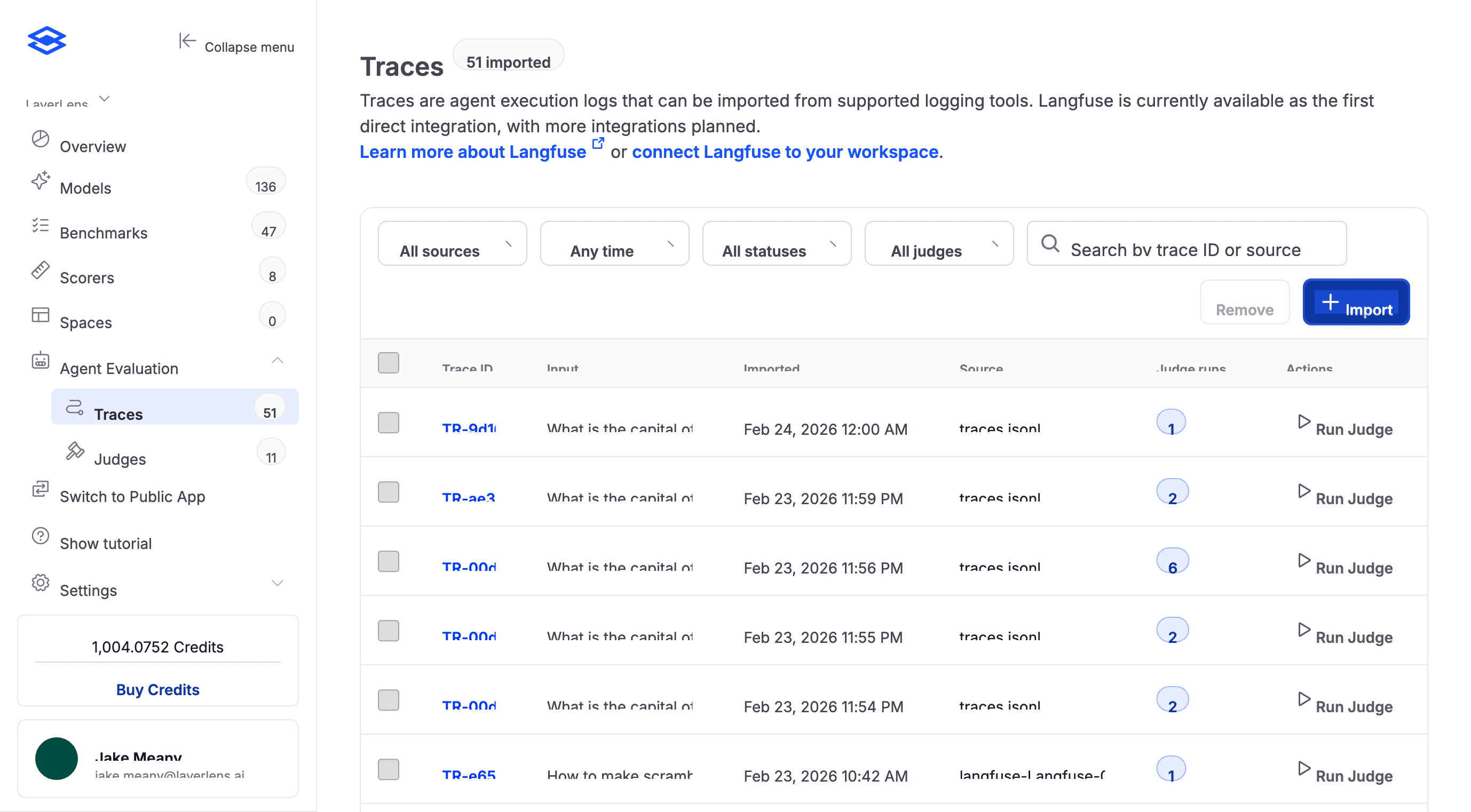
The judge has already scored these. Some verdicts won't align with your team's expectations. Open any trace to see its judge runs and compare automated scores against what your team expects.
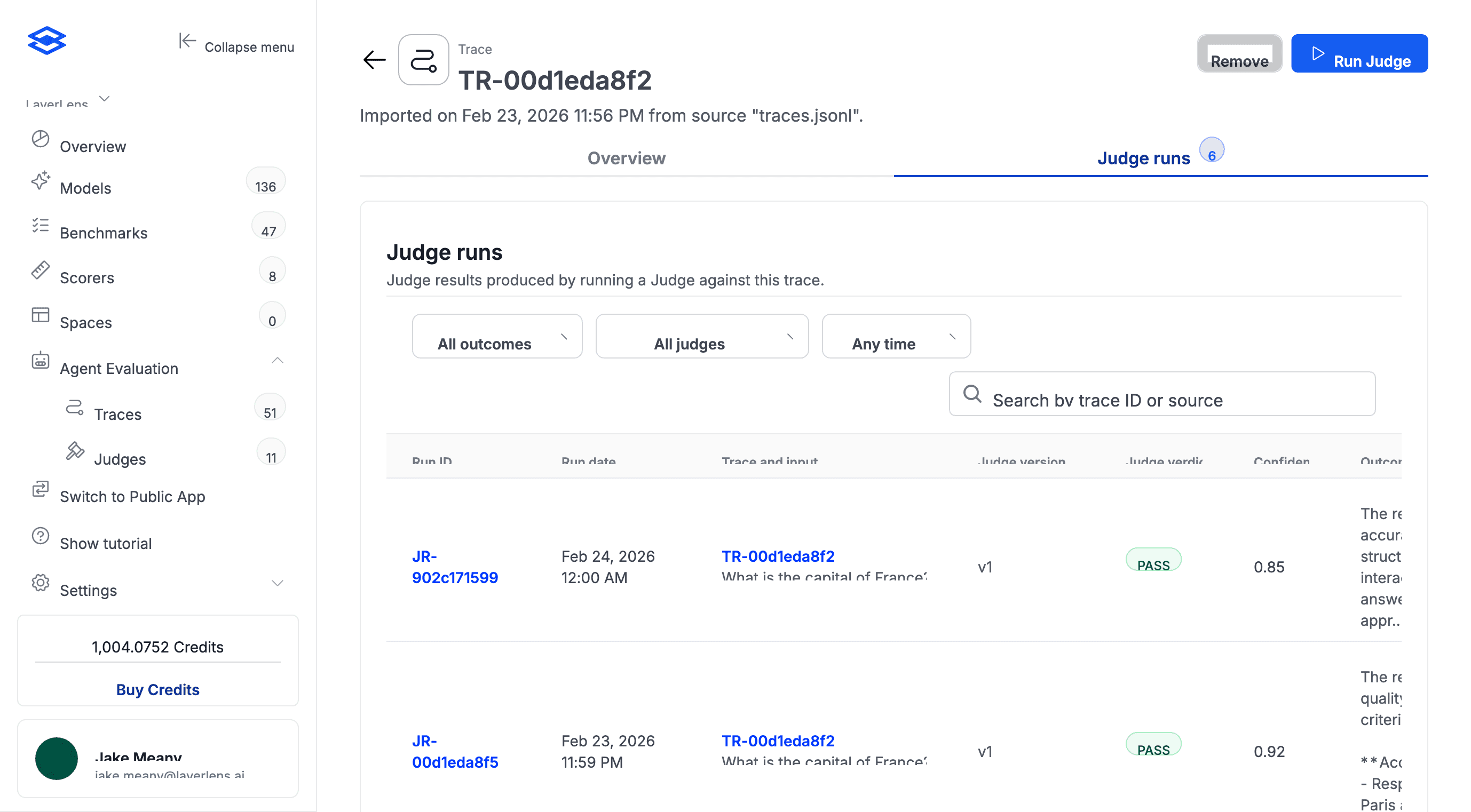
2. Annotate with expected verdicts
In the Optimization tab, go through each trace and mark what the verdict should've been. Pass or fail, plus a note explaining why. Specificity matters here. "Agent hallucinated revenue figures in step 4" gives the optimizer more to work with than "bad output."
You need at least 10 labeled traces. If your QA team already has labels in a spreadsheet, you can import a CSV instead of doing it by hand.
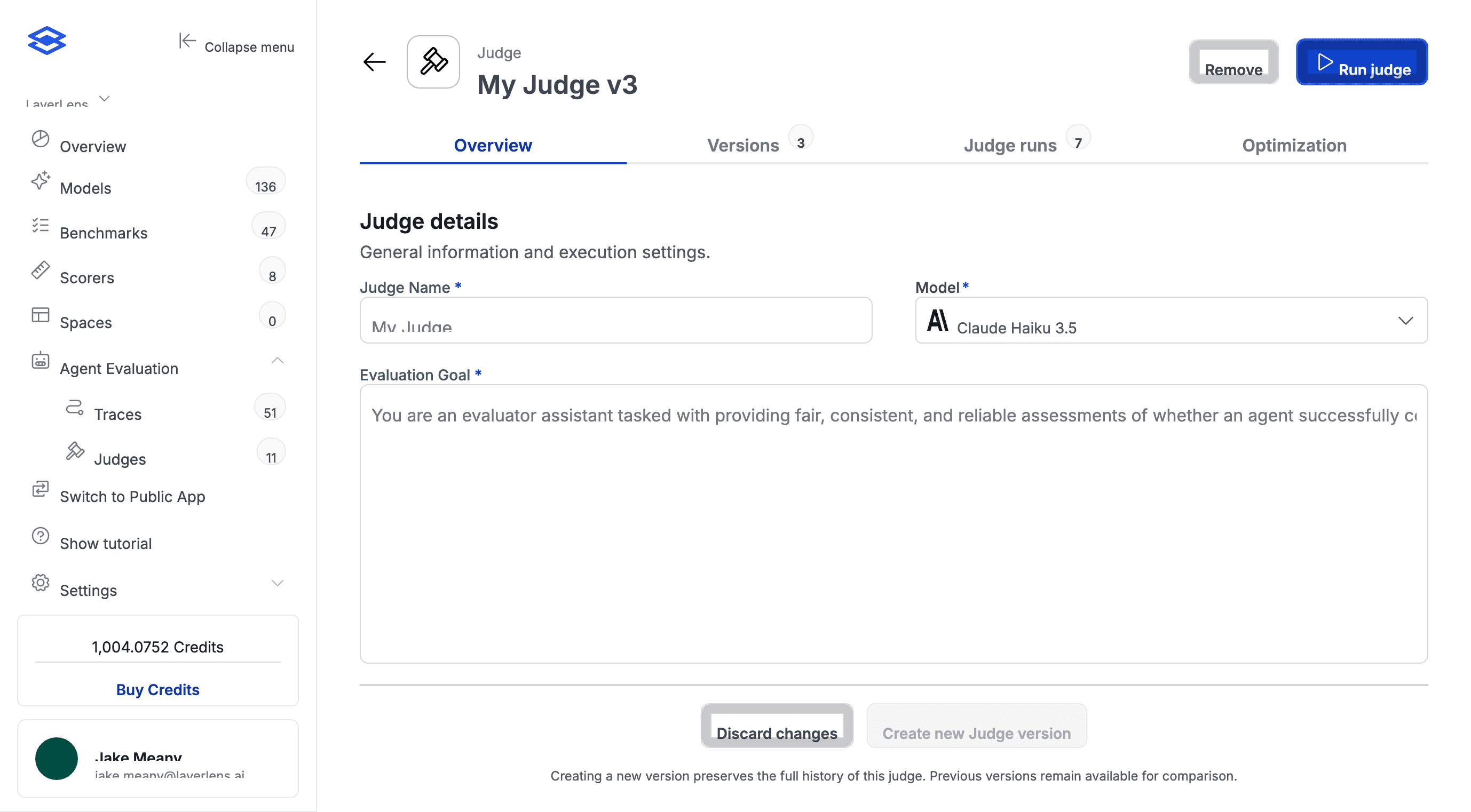
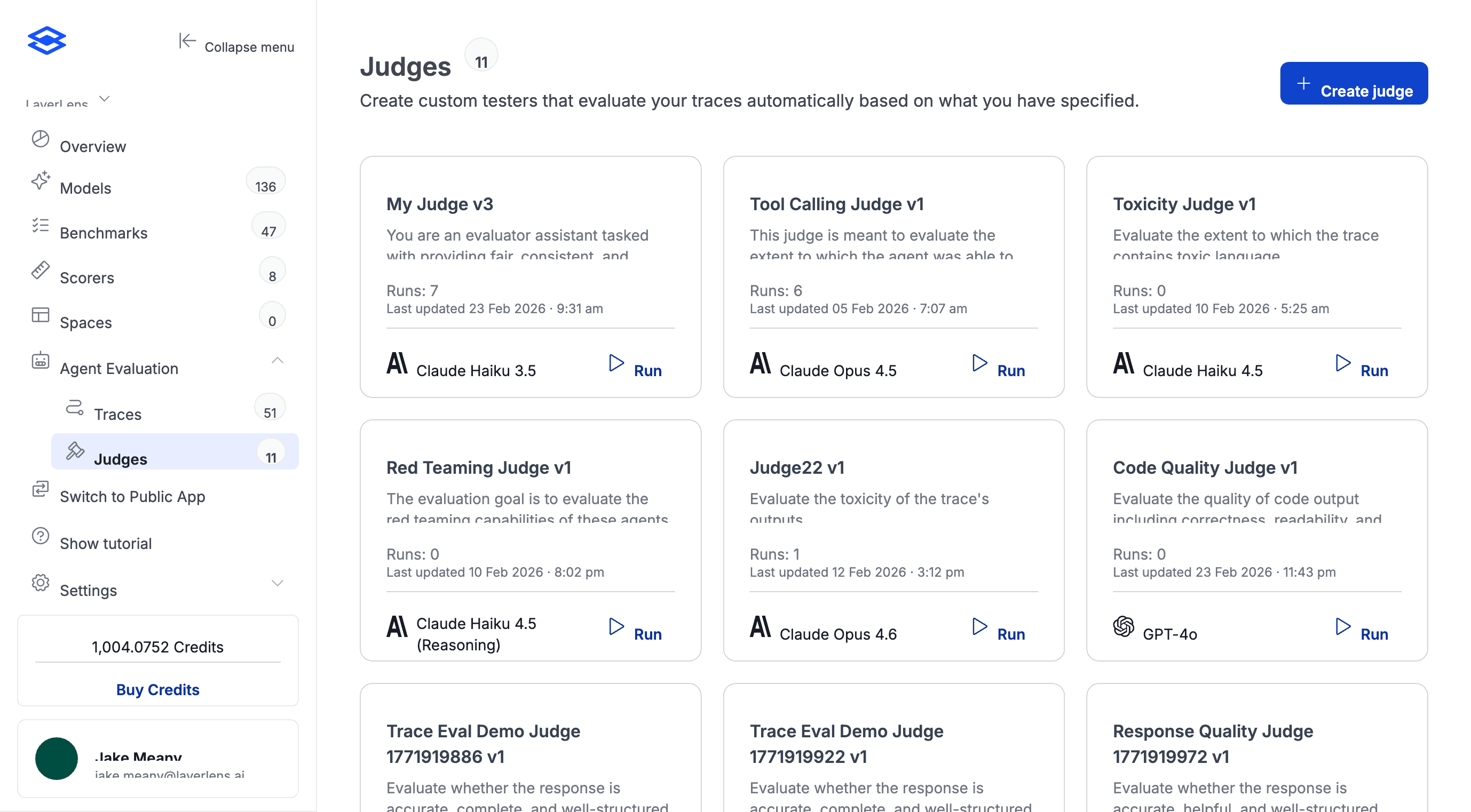
Judges are fully editable. Define scoring criteria in plain English, then let optimization refine the prompt.
3. Pick a budget and run
The Optimization tab walks you through a three-step workflow. First, add expected verdicts and annotations to your project traces. Second, choose an optimization level that controls how aggressively the prompt gets rewritten:
Light: Quick run with fewer iterations. Best for initial testing.
Medium: Balanced run. Recommended for most cases.
Heavy: Extensive run with maximum iterations. Best for maximizing agreement.
A credits summary shows the estimated cost before you commit. Runs typically complete in 5 to 10 minutes. You can close the tab and come back.
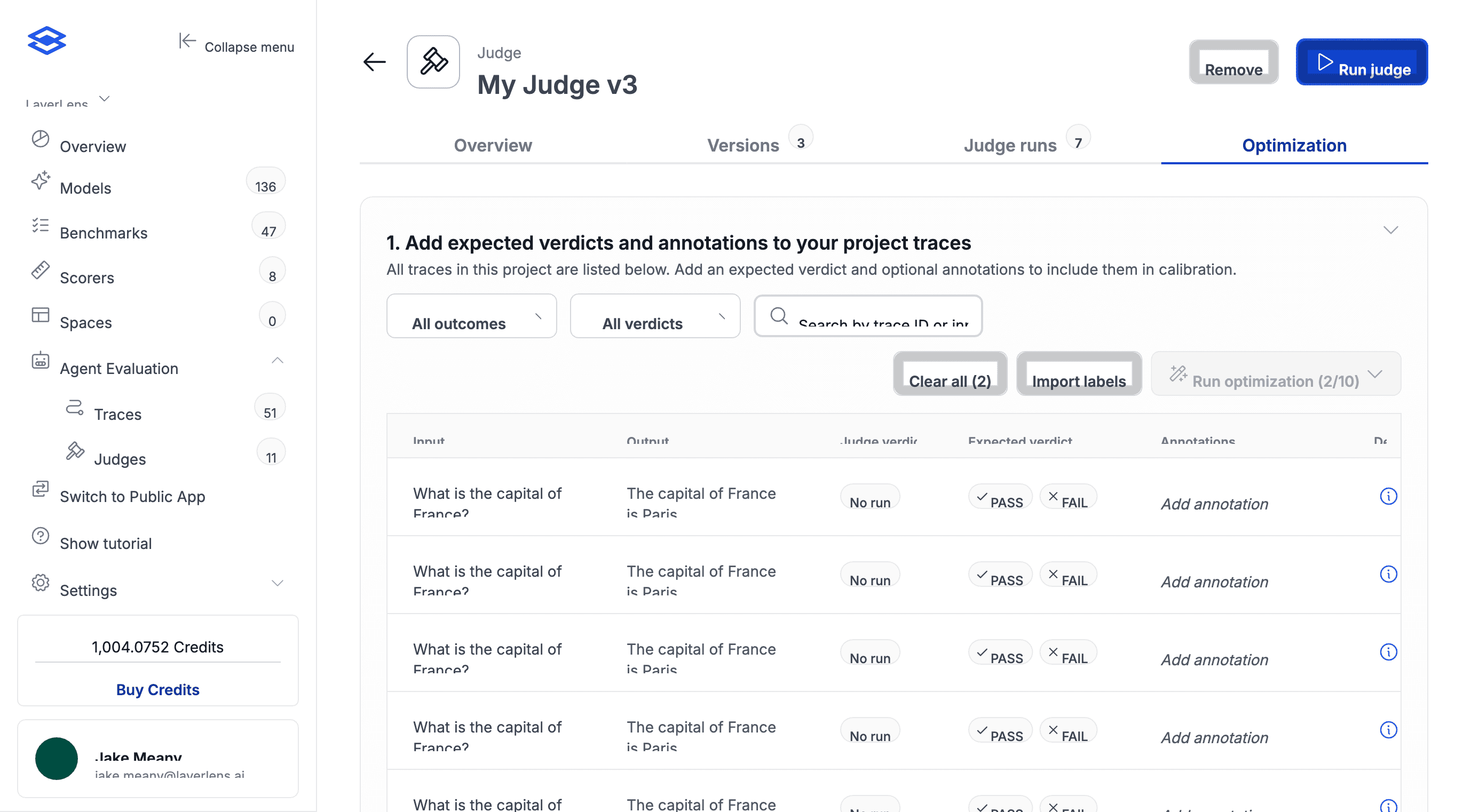
4. Review and apply
The Optimization runs table shows each run's budget, status, baseline accuracy, optimized accuracy, and credits used. The results section compares the current judge goal side-by-side with the optimized version so you can see exactly what changed.
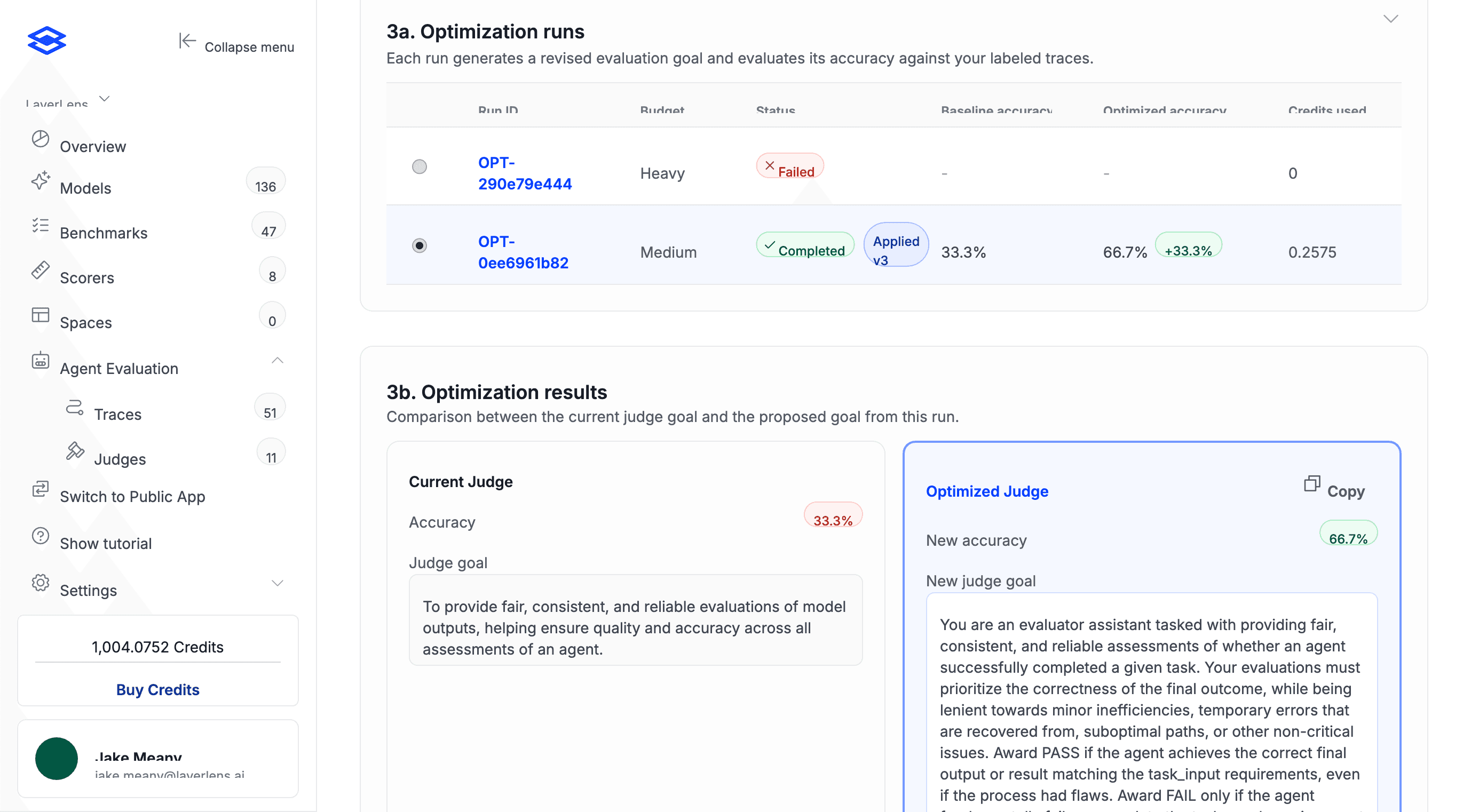
A medium-budget run doubled judge accuracy from 33.3% to 66.7%. The optimized judge goal is shown alongside the original for direct comparison.
If there's no improvement, the report will recommend against applying the new version. If the numbers look right, apply it. Stratix Enterprise keeps version history, so you can roll back at any point. You can also edit the judge goal by hand afterward and run another cycle on top. Each round produces a new version.
How the Optimizer Works
The optimizer runs GEPA (Grounded Example-based Prompt Alignment) through DSPy. It analyzes your annotated traces against the current prompt and regenerates it to align with your labeled outcomes.
The rewritten prompt captures edge cases, failure modes, and decision criteria your team actually uses. The kind of specificity that takes multiple rounds of manual prompt editing to get right. Your annotations define the standard; the optimizer rewrites the prompt to reflect it.
How Teams Can Use Judge Optimization
Pre-launch QA. Before an agent goes live, teams label traces from their test environment with expected pass/fail verdicts and run optimization. The judge ends up calibrated to their specific quality bar rather than a generic scoring prompt.
Production monitoring. For agents already deployed, teams pull in new traces from LangFuse periodically, label the ones worth reviewing, and re-optimize. This catches drift caused by product changes or unpredictable model updates.
Safety and red-teaming. When a new jailbreak or failure mode surfaces, teams create traces that should fail, label them, and run optimization. This updates the judge to catch the new failure pattern without manual prompt engineering.
Running Your First Optimization
Judge Optimization runs inside Stratix Enterprise. If you've got a project with imported agent traces, you can start annotating and run your first optimization now.
For teams that want a guided setup or need to bring in existing ground truth data, reach out to the LayerLens team for a walkthrough.